Introduction to Version Control#
Version control is a fundamental practice in research software engineering that tracks changes to files over time, enabling collaboration, reproducibility, and safer experimentation.
Why Use Version Control?#
Version control systems track changes to files over time, creating a complete history of a project’s evolution. For research and scientific computing, version control provides several critical benefits:
Preserving history:
Every change is recorded with information about the author, timestamp, and rationale.
This creates a complete, searchable audit trail of the project’s development.
Enabling collaboration:
Multiple researchers can work on the same codebase simultaneously.
Version control systems help merge contributions and identify conflicts that require manual resolution.
Supporting reproducibility:
By tagging specific versions of code, the exact analysis environment used for a publication or result can be precisely recreated.
This is essential for scientific integrity and allows findings to be independently verified.
Facilitating experimentation:
Version control makes it safe to test new approaches.
Experimental branches can be created without affecting the main codebase, and unsuccessful changes can be easily reverted.
Disaster recovery:
Through the use of remote repositories, work is protected against local hardware failures or accidental deletions.
Git Basics#
Git is a distributed version control system created by Linus Torvalds in 2005. Unlike centralized systems, Git stores the complete project history locally on every machine. This means offline work is possible, and operations like viewing history or creating branches are instantaneous.
Git tracks changes at the file content level, storing snapshots of the entire project at specific points in time. These snapshots are called commits.
Core Concepts#
Repository (repo):
A directory tracked by Git, containing project files and the complete version history stored in a hidden .git folder.
Commit:
A snapshot of a project at a specific moment. Each commit has:
A unique identifier (SHA hash)
Author information
Timestamp
A message describing the changes
A reference to its parent commit(s)
Branch:
A pointer to a specific commit, representing an independent line of development. Branches allow features or experiments to be worked on without affecting the main codebase. Git’s default branch is typically called main (or formerly master).
Tag:
A named reference to a specific commit, used to mark important milestones like releases. Unlike branches, tags do not move as new commits are added.
Remote:
A version of the repository hosted elsewhere (e.g., GitHub, GitLab). Remotes enable collaboration and serve as backups.
The Commit Graph#
Git organizes commits into a directed acyclic graph (DAG), where each commit points to its parent(s). This structure allows Git to efficiently track the evolution of a project and identify where different development lines diverged or merged.
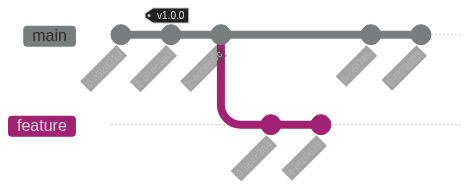
In this example, commit B is the common ancestor of both branches.
The main branch has progressed through commits C and D, while feature-branch has progressed through commits E and F.
These branches can later be merged back together.
Basic Git Workflow#
Typical Development Cycle#
Best Practice
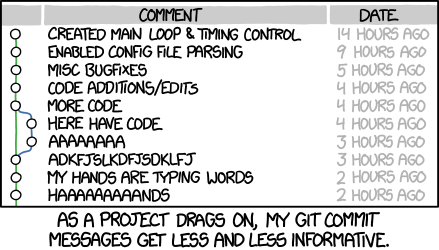
Clear commit messages are essential for reference and orientation.
First, code is fetched from a remote repository to a local machine utilizing git clone (for initial setup) or git pull (for updates).
Modifications are then made within the local working directory and staged via git add.
Subsequently, these modifications are permanently recorded to the local repository’s history through git commit.
Finally, the updated local history is uploaded back to the remote repository utilizing git push.
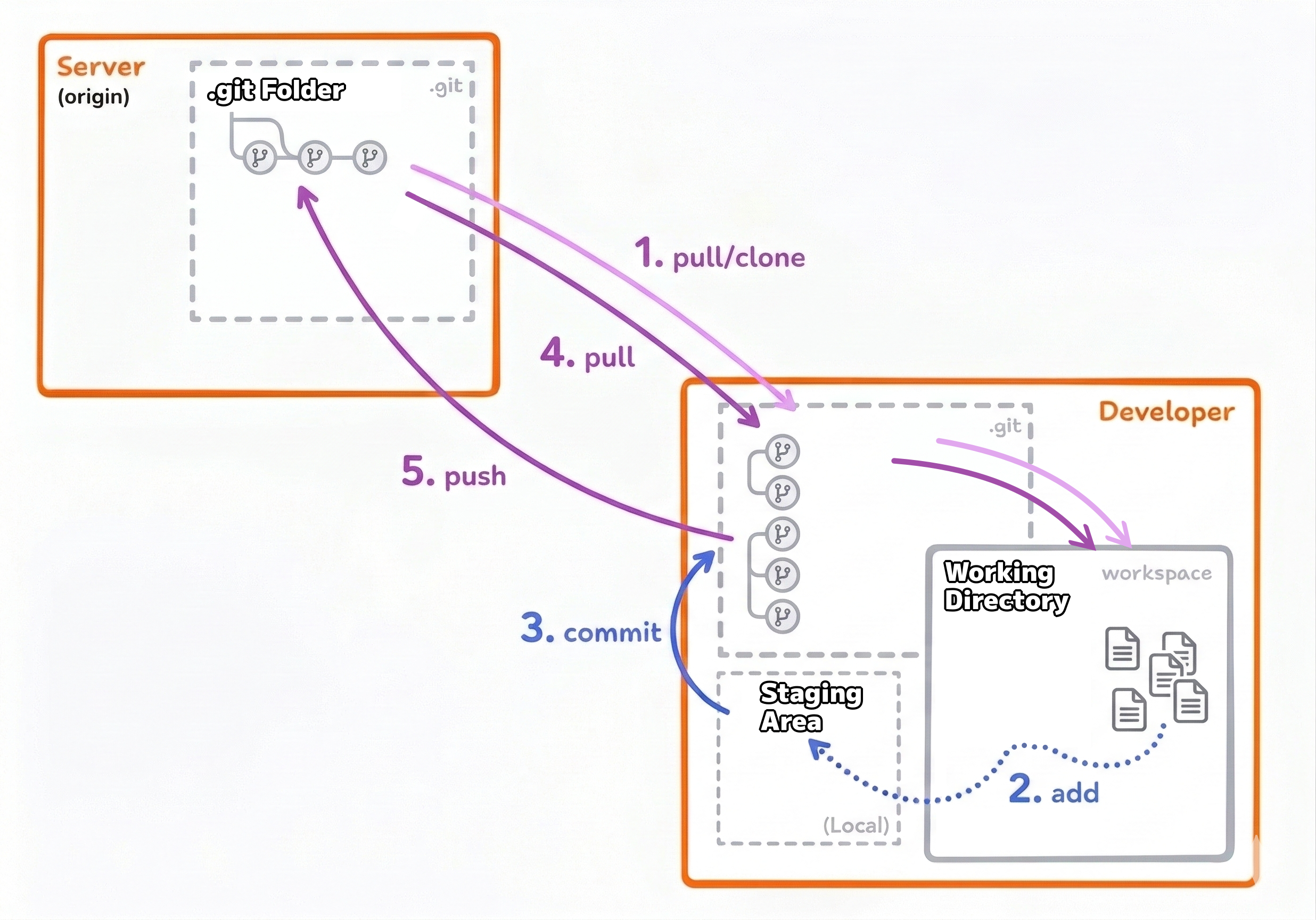
The basic Git workflow involves moving changes through different stages, from a local working directory to a remote repository where they can be accessed by others.
The Three States of Git#
Git operates using three main states for files:
Working Directory:
The actual project files where changes are made.Staging Area (Index):
A preparation area where specific changes are selected for inclusion in the next commit.Repository:
The committed history safely stored in the.gitdirectory.
This three-stage model provides fine-grained control over what is recorded in the project history.
Essential Commands#
Initial setup (one-time configuration):
# Configure author identity
git config --global user.name "Author Name"
git config --global user.email "author@example.com"

# Clone an existing repository
git clone https://github.com/username/repository.git
Daily workflow:
# Check repository status
git status

# Stage specific files
git add analysis.py figures/plot.png

# Stage all changes
git add .
# Create a commit
git commit -m "Add correlation analysis and visualization"

# View commit history
git log --oneline
Synchronizing with remotes:
# Fetch and merge changes from remote
git pull

# Send changes to remote
git push
Working with Branches#
Branches allow features to be developed in isolation:
# Create and switch to a new branch
git checkout -b feature-analysis

# Make changes, add, commit...

# Switch back to main
git checkout main

# Merge feature branch
git merge feature-analysis
Commit Message Best Practices#
Best Practice
Clear commit messages are essential for reference and orientation.
Good commit messages are essential for maintaining a usable project history^1:
Be concise but descriptive: Summaries should clarify what changed and why.
Use imperative mood: Commands like “Add feature” are preferred over “Added feature”.
Focus on the what and why, not the how (the code itself demonstrates the how).
Reference issues or tickets when applicable.
Example:
git commit -m "Add normalization step to preprocessing pipeline

Raw sensor data varied in scale across experiments. Implements z-score
normalization to ensure consistent input ranges for downstream analysis.
Fixes issue #42."
Versioning#
Various methods exist to document the state of a repository. To improve both readability and functionality, the adoption of a consistent structure when describing its state is highly recommended. A key element of this structure is often a version identifier.
Versioning provides a logical framework for labeling specific states of a repository.
It offers a structured way to describe these states, though the exact method may vary depending on the versioning approach used. Many different options exist, each with its own logic.
Choosing the most appropriate versioning approach can be somewhat subjective. However, certain methods are more commonly adopted than others. Here, one of the most widely adopted approaches is presented: SemVer.
In short, SemVer is a versioning system that utilizes a three-part number (X.Y.Z) to track changes to a software project or dataset.
Incremented when breaking changes or significant updates are made that are not backwards-compatible.
Incremented when new features or functionality are added in a backwards-compatible manner.
Incremented when backwards-compatible bug fixes or minor updates are introduced.
Defining a new version of a repository is straightforward when utilizing git tag:
git tag -a X.Y.Z -m 'short description of state'
Further Resources and Topics#
Additional Topics#
While the fundamental concepts of version control and Git have been covered, there is much more to learn for effective application in academic and research settings.
Collaboration workflows: Effective collaboration utilizing branches, pull requests, and code review processes.
Handling conflicts: When the same files are modified concurrently, Git helps identify conflicts that require manual resolution.
Remote services: Platforms such as GitHub and GitLab provide project management tools, issue tracking, and collaboration features beyond Git itself.
Advanced Git operations: Rebasing, cherry-picking, bisecting, and other powerful commands for managing complex histories.
CI/CD automation: The utilization of automated workflows to test code, build documentation, or ensure reproducibility.
Git for scientific reproducibility: Strategies for versioning data (Git LFS), managing multi-repository projects (submodules), and linking code versions to published results.
Recommended Learning Path#
For a comprehensive treatment of Git in academic contexts, the course “Using Git in Academia” maintained by T4D GmbH is highly recommended:
🔗 t4d-gmbh.github.io/using-git-in-academia
This four-part course provides:
Detailed exploration of Git’s building blocks
Collaboration workflows including “feature branch” development
Hands-on conflict resolution exercises
Versioning strategies and semantic versioning
Understanding GitHub vs. GitLab features
Project organization and team management
Contributing to open-source projects
Advanced project management tools
Automated testing and deployment
Creating reproducible computational environments
Workflow triggers and integration with project management
Security considerations for automation
Versioning large datasets with Git LFS
Managing multi-repository analyses with submodules
Bridging the gap between versioning and full reproducibility
Automated analysis pipelines
The course includes practical exercises with real repositories, providing hands-on experience with all concepts.
Getting Help#
When issues are encountered:
Git documentation:
git help <command>or git-scm.com/docInteractive tutorials: learngitbranching.js.org
Stack Overflow: Most Git questions have already been answered.
GitHub/GitLab documentation: Platform-specific features and best practices.
Practical Advice#
Immediate adoption of Git is recommended, even for solo work. The benefits of version control (history tracking, safe experimentation, and backup) apply to individual projects just as much as collaborative ones. As basic operations become familiar, more advanced features can be gradually explored.
Playground Repository
A “Playground Repository” should be utilized to safely test the effects of different Git commands.
The key is consistent use. Like any tool, Git becomes intuitive with regular practice.